
Claude
Add FirstSourceTeam to Claude as a custom connector with the URL https://firstsourceteam.com/api/mcp, then sign in with your employer portal account. Works on the Free (one connector), Pro, Max, Team and Enterprise plans.
Claude connects to FirstSourceTeam as a custom connector. It works on the Free (one custom connector), Pro, Max, Team and Enterprise plans, on the web and in the desktop app.
Let Claude walk you through it
Copy the setup prompt and paste it into Claude. It guides you one step at a time, then runs a test question once you're connected.
Pro, Max or Free
Open "Add custom connector" in Claude- Open the link above, or go to CustomizeConnectorsAddAdd custom connector
- Name it FirstSourceTeam and enter the server URL
https://firstsourceteam.com/api/mcp, then select Continue.
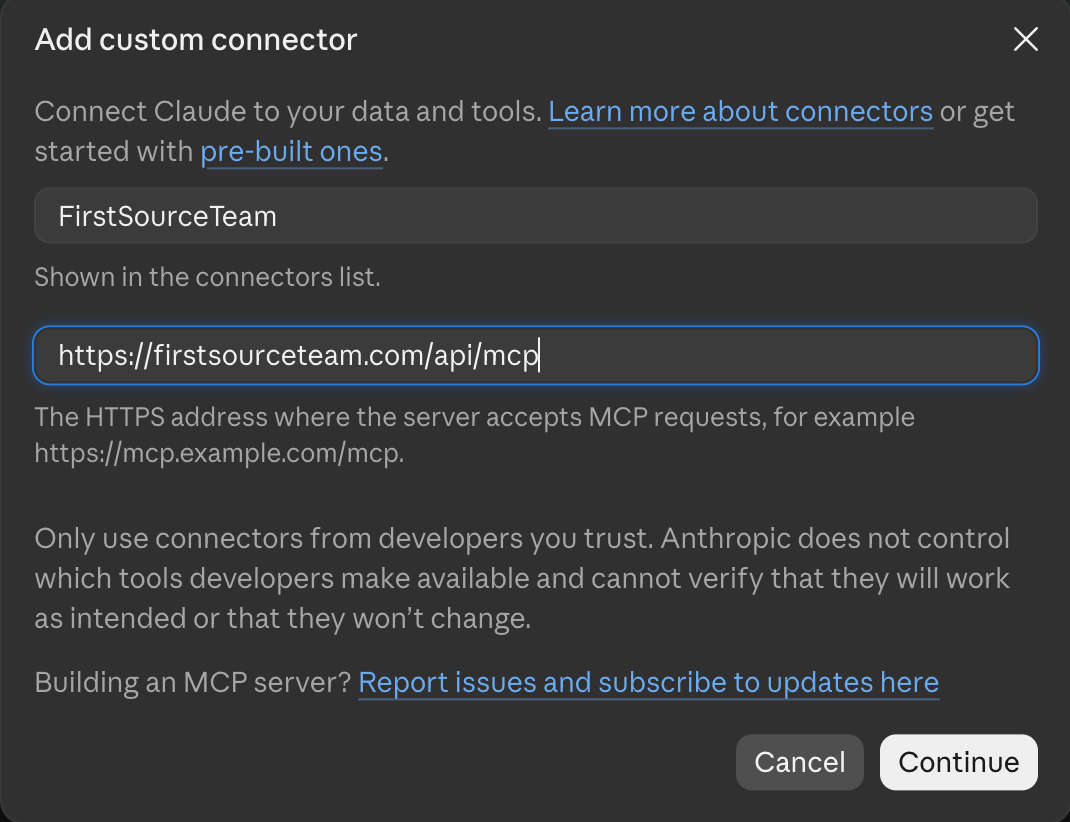
- If asked how to sign in, choose Sign in now. If asked for an OAuth client, choose Use Claude's published identity, and leave the OAuth client ID and secret empty.
- Select Add, then Connect, and sign in with your employer portal account.
Team or Enterprise
An Owner adds the connector once for the whole organization: Organization settingsConnectorsAddCustomWeb with the same URL. Each person then goes to CustomizeConnectors, finds FirstSourceTeam with the Custom label, selects Connect and signs in with their own portal account.
Use it in a chat
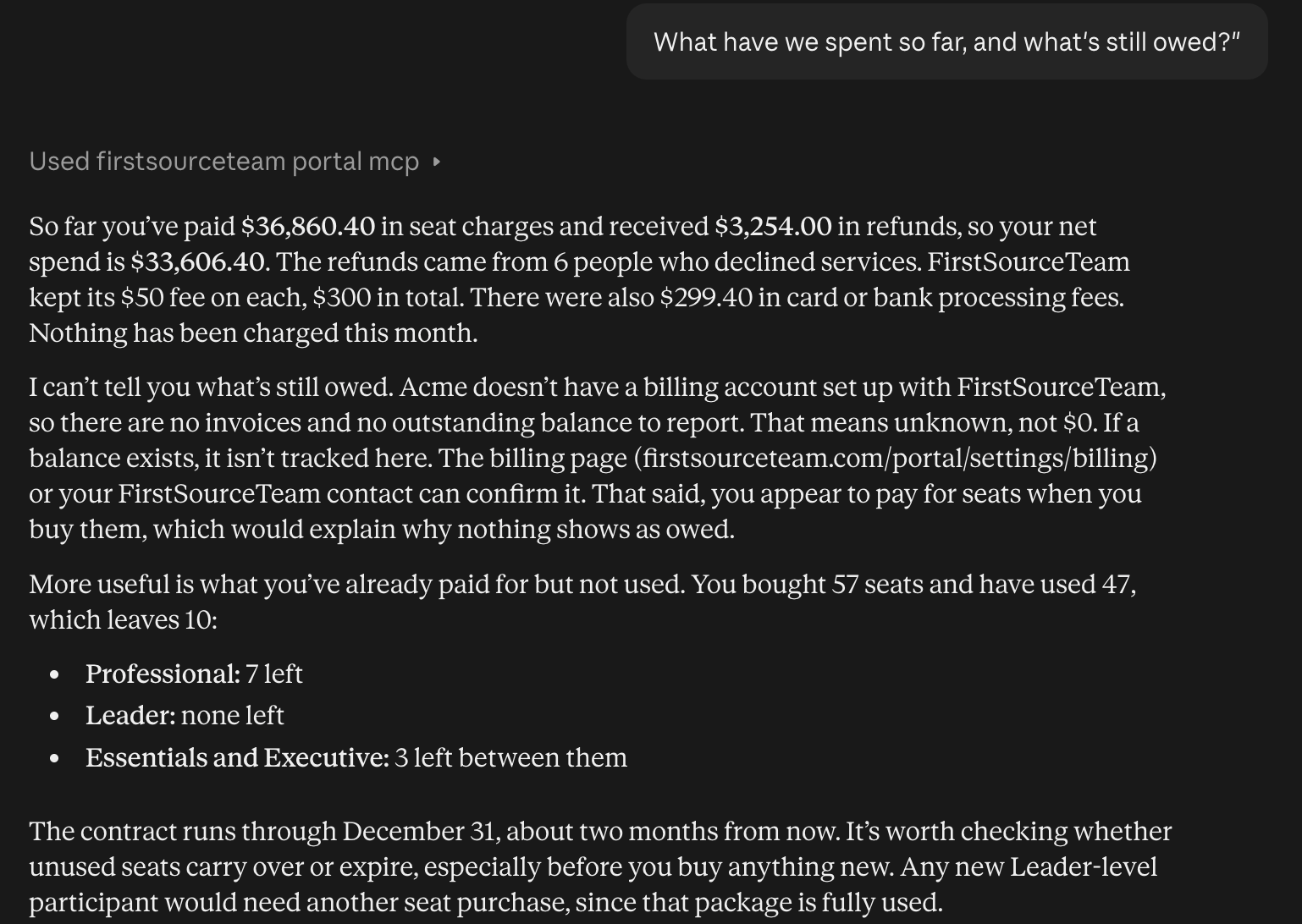
Open the + menu, select Connectors and make sure FirstSourceTeam is on. Then ask, for example, "How is our program doing by launch group?" Claude shows Used FirstSourceTeam above answers that came from the connection.
Something not working? See If something doesn't work.
Last updated on